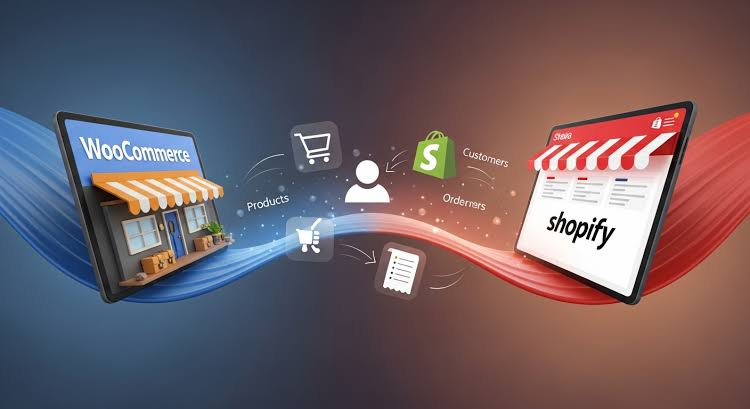
Making the switch from WooCommerce to Shopify is a major decision thousands of store owners weigh each year. If you’ve been wrestling with WordPress updates, plugin conflicts, and the technical overhead of WooCommerce, you’re not alone in exploring what Shopify’s all-in-one platform offers.
Why Brands Leave WooCommerce
WooCommerce powers millions of stores for good reason: it’s flexible, open-source, and endlessly customisable. But that flexibility carries a cost beyond hosting fees. Many owners spend more time managing their tech stack than growing the business: security patches, plugin updates, server maintenance, and making sure everything plays nicely together. When a plugin breaks after an update, your checkout can go down until you find the culprit.
For growing brands, that burden compounds. Your team should be focused on marketing, customer service, and product, not troubleshooting why the site went down at 2 AM.
What Shopify Brings
Shopify runs on a different model entirely. It’s fully hosted and handles the infrastructure for you: updates happen automatically without breaking your store, and security, performance, and server management are Shopify’s job, not yours.
Features that need multiple plugins on WooCommerce come built in: abandoned cart recovery, discount codes, gift cards, and multichannel selling. The checkout, optimised across billions of transactions, converts exceptionally well. For brands scaling internationally, native multi-currency and localisation handle what would take heavy customisation in WooCommerce, and the POS system integrates cleanly if you have physical retail.
Understanding the Migration Challenge
Switching platforms isn’t like switching email providers. Your entire business runs through this system, and mistakes can mean lost data, broken accounts, or SEO drops.
Complexity scales with your store. A basic shop with 100 products is straightforward. One with 10,000 SKUs, thousands of customers, years of order history, and custom product options is a far bigger job. Product data (descriptions, images, variants, inventory) has to transfer accurately. Customer accounts need their order history intact. Your URL structure must be mapped to protect SEO equity.
Preparing Your Store
Good prep saves headaches. Audit your current store and document every customisation, plugin, and integration you rely on, so you know what needs replicating in Shopify. Clean your data first: delete discontinued products, remove duplicate accounts, and archive orders that don’t need to move. The cleaner the data going in, the smoother the result.
Take a full backup (database, media, custom code) as both a safety net and a reference. Then research how your essential functionality will work on Shopify, identifying the apps or native features that replace your current plugins. Finally, give your team notice, especially customer service and warehouse staff who’ll need training.
Manual vs. Automated Migration
Some owners migrate manually, exporting WooCommerce data to CSV and importing into Shopify. It’s free but slow and error-prone, and only really workable for small, simple catalogs.
Variants are the main sticking point: WooCommerce and Shopify structure them differently, and reformatting by hand is tedious. Images often don’t carry over cleanly, and customer passwords can’t transfer at all because the encryption is incompatible, so customers must reset after launch.
This is where a dedicated import/export tool earns its place. Altera is a Shopify import/export app built specifically to keep up with the platform, and it removes most of the manual pain. A few things set it apart from other options:
- Flat $15/month. Altera Pro is one price with every data type, no row limits, and no higher tiers to climb as you grow. Most competitors price by capacity, so bigger catalogs push you onto pricier plans.
- 23 Shopify data types. It covers far more than basic product info, including metafield and metaobject definitions, catalogs, inventory transfers, locations, and market translations, the kinds of data most tools skip and exactly what matters in a full store move.
- AI-driven imports. Altera works with Claude and ChatGPT (plus Shopify’s Sidekick), so you can run imports, exports, and edits in plain language, with an MCP server that lets AI assistants read your store structure directly.
- Matrixify-compatible. If you already have Matrixify files, they work in Altera with zero reformatting: same Excel/CSV formats, same column names.
- Dry-run previews. Upload a file and Altera analyses it first, detecting the data type, showing column mapping and row counts, and flagging issues before anything runs, so you catch problems without touching your live store.
For the full step-by-step, Altera’s WooCommerce to Shopify guide walks through the process in detail.
Handling Custom Functionality
Custom work is the trickiest part. Shopify uses Liquid, its own templating language, so PHP-based theme work has to be recreated, which can be a chance to refresh your design. Custom plugins need rebuilding as Shopify apps or swapping for existing ones, and in many cases an app already does what you built custom. Some businesses find the move actually simplifies their stack.
Maintaining SEO
Protecting your rankings is critical. URL structures differ (WooCommerce uses /product/, Shopify uses /products/), so every changed URL needs a 301 redirect. Verify that title tags and meta descriptions carry over correctly, and after launch, submit your new Shopify sitemap to Google Search Console so search engines pick up the new structure.
Testing Before Launch
Never point your domain at the new store without thorough testing. Set up Shopify on a temporary domain and run through everything: place test orders, check discount codes, shipping, and payments across different product and variant types. Create test customer accounts and confirm login and order history work. Verify email notifications send and display correctly, review the site on real mobile devices, and have your team test the admin so they’re comfortable before go-live.
The Day of Migration
Time the switch for your lowest-traffic window, often late night or early morning midweek. Take a final WooCommerce backup, put the old store in maintenance mode so no new orders slip in, then run your final migration to capture recent changes. Point your domain at Shopify, monitor both systems while DNS propagates (which can take a few hours), and re-test everything on the live domain once it’s live.
After the Migration
The work continues post-launch. Monitor closely for the first few weeks for errors or customer complaints, and keep your WooCommerce store backed up but inactive for at least 30 days as a fallback. Train your team properly (hands-on experience beats a pre-launch walkthrough), confirm Google Analytics is tracking correctly, and watch your rankings and traffic. Some fluctuation is normal; sharp drops usually point to redirect issues worth fixing fast.
Is Migration Right for You?
Moving platforms isn’t right for everyone. If WooCommerce is working well and your team is comfortable, staying put may be the better call. But if you’re losing time to maintenance, missing features that would grow the business, or fighting performance issues, migration is worth serious thought. Picture where you want to be in two or three years and choose the platform that supports that vision, not just what’s comfortable today.